Additional reading related to Computing Past: Mel, the Realest Programmer of All:
The year 1982 produced a best-selling book Real Men Don’t Eat Quiche. Ed Post, of Tektronix, Inc., sent a letter to the editor of Datamation in July 1983 titled “Real Programmers Don’t Use Pascal.”
“The Story of Mel,” the realest programmer of all, is a brilliant (and true) portrayal from a year later:
James Seibel wrote an excellent explanation about “The Story of Mel” for the young-un’s who have never beheld actual core memory:
Don’t miss his “Addendum” at the end of the article. It’s a great perspective for all of us. Each of us has the capacity to be a Real Programmer.
Librascope LGP-30:
My slide deck with presenter notes: http://otscripts.com/wp-content/uploads/2017/05/Mel-php-tek.pdf
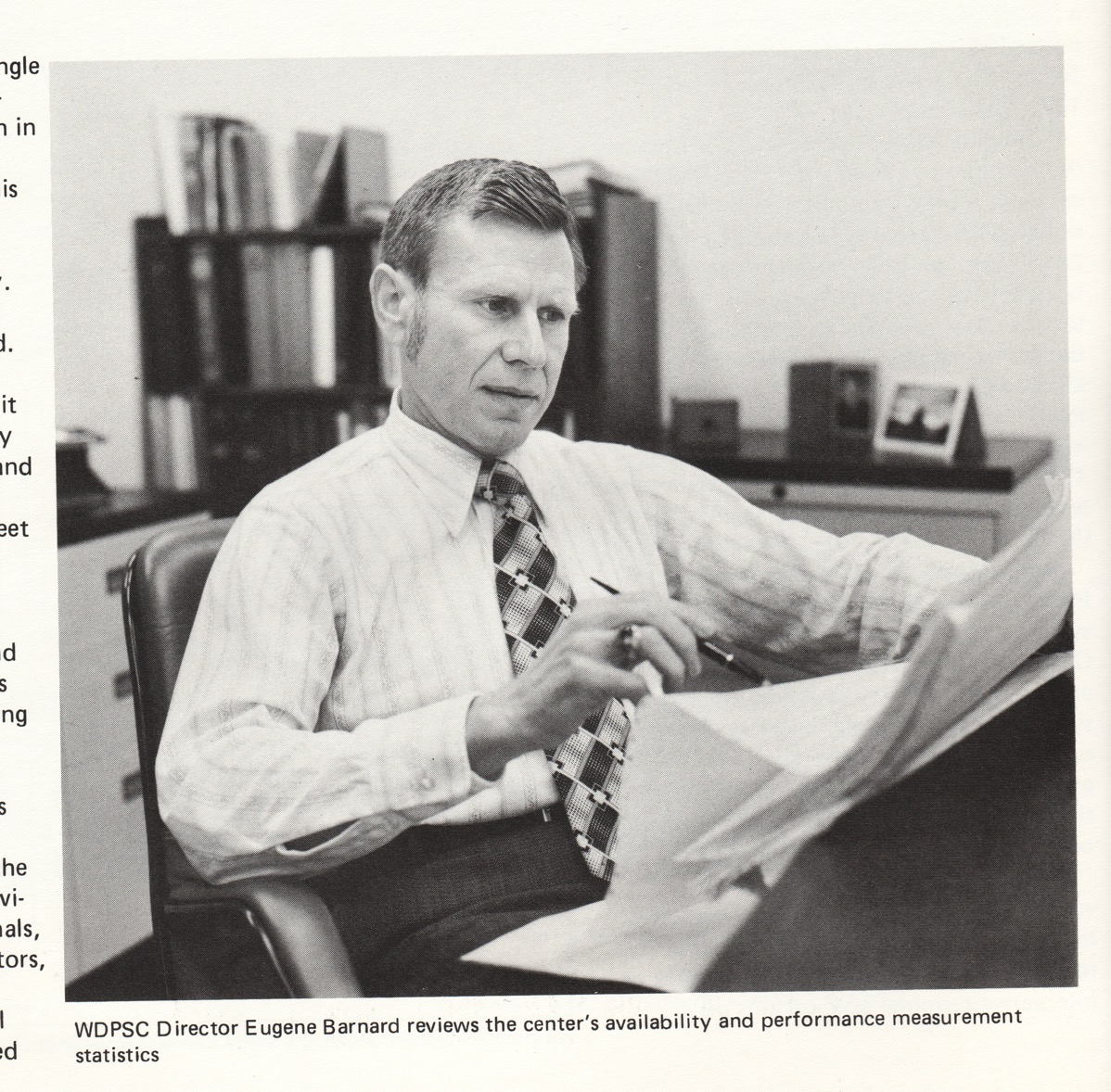
The photo is of my father, circa 1977 (Director of Washington State Data Processing Service Center).
Categories:
Slide Decks Tags:
Additional reading related to Big Iron: PHP Lessons from Cold War supercomputing:
The year 1982 produced a best-selling book Real Men Don’t Eat Quiche. Ed Post, of Tektronix, Inc., sent a letter to the editor of Datamation in July 1983 titled “Real Programmers Don’t Use Pascal.”
“The Story of Mel,” the realest programmer of all, is a brilliant (and true) portrayal from a year later:
Finally, James Seibel wrote an excellent explanation about “The Story of Mel” for the young-un’s who have never beheld actual core memory:
Don’t miss his “Addendum” at the end of the article. It’s a great perspective for all of us. Each of us has the capacity to be a Real Programmer.
Categories:
Slide Decks Tags:
Elizabeth Smith’s keynote at Midwest PHP brought me into the PHP community. Cal Evans reinforced the idea with ways to participate and give back to the community.
“PHP Conference” and “PHP Community” are not the same. But, in my mind, they’re closely tied together because it’s at the conferences that I experience the best parts of our community. It’s at the conferences that I see we are a community.
The Value of Conferences
Each PHP conference that I’ve attended has directly impacted my work projects.
Last March, I attended Midwest PHP 2016.
Read more…
Categories:
Slide Decks Tags:
“Uncle Cal” Evans writes “Conference !== Family Reunion” in the October 2016 issue of php[architect]. He talks about being part of the “in group.” What can we do to make any conference suck less for new attendees?
Having just returned from the excellent 2016 Madison (Wisconsin, USA) PHP Conference, I can see the problem. I don’t have any answers, but I am hereby collecting links to any wisdom I can find. Please send me suggestions, to @ewbarnard. Thank you!
Cal Evans’s voice of experience:
- Make a list of people you want to meet.
- Look at the speakers list.
- Look at the people tweeting about the conference.
- Are there any attendees you want to meet?
- Make a list BEFORE you leave.
- This isn’t just fanboi “Oh gosh it’s great to meet you [Mr.|Ms.] Whatever.
- These could be networking opportunities, job seeking opportunities, whatever.
- Regardless of why you want to meet someone, if you don’t make a list before hand, you probably won’t get around to it at the conference.
Cheers!
=C=
Elizabeth Smith:
Follow up after a conference matters too. Jump on IRC and keep in touch with the people you meet 🙂
Relevant Articles:
Can you suggest any online resources I could include? Again, thank you!
Categories:
Slide Decks Tags:
Using encryption sounds simple. It is! The trouble is that encryption is extremely difficult to get right. In fact it’s a great way to grab news headlines when you get it spectacularly wrong.
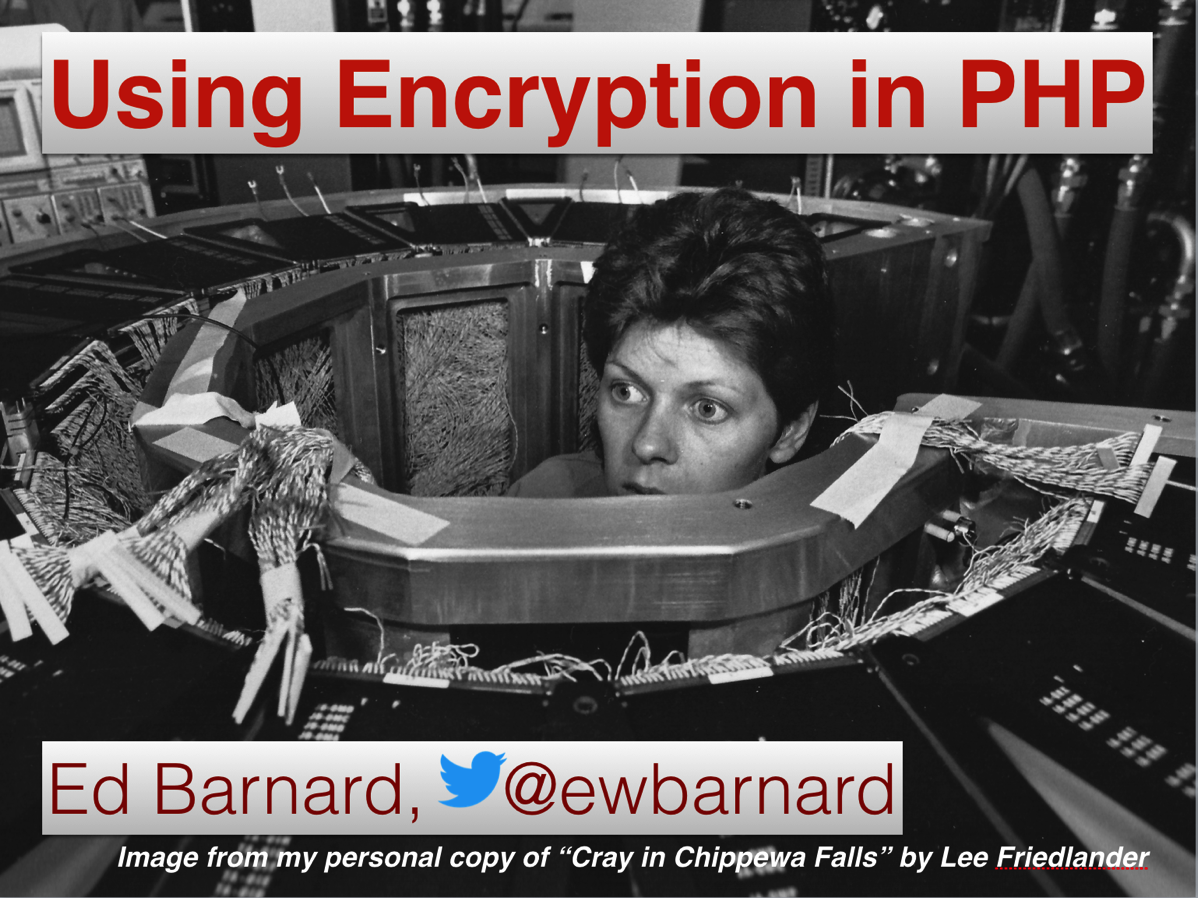
This talk focuses on two basic concepts you need to understand when getting PHP’s encryption to work in your application: obtaining randomness, and encrypting/decrypting a string with cryptographic checksum.
I include an extensive curated PHP security reading list with explanations.
About Edward Barnard (@ewbarnard)
Ed Barnard has been programming computers since keypunches were in common use. He’s been interested in codes and secret writing, not to mention having built a binary adder, since grade school. These days he does PHP and MySQL for InboxDollars.com. He believes software craftsmanship is as much about sharing your experience with others, as it is about gaining the experience yourself. The surest route to thorough knowledge of a subject is to teach it.
Additional Material
Categories:
Slide Decks Tags:
Here is my reading list related to implementing encryption in PHP.
-
Web Security 2016 from php[architect] magazine, https://www.phparch.com/books/web-security-2016/. This anthology includes Ed Barnard’s Securing Your Web Services series.
-
Cryptography Engineering: Design Principles and Practical Applications by Niels Ferguson, Bruce Schneier, Tadayoshi Kohno, http://www.amazon.com/gp/product/0470474246. Reading a book or two won’t make you a cryptographer. But read the book or two anyway, starting with this one.
-
Information Security at Stack Exchange, http://security.stackexchange.com/. I find the Information Security folks to be friendly, helpful, authoritative, and thorough. Learn to ask questions correctly and you’ll be delighted with the responses. Don’t be shy, but show that you’ve thought things through before typing out the question. Related are What to do when you can’t protect mobile app secret keys? and How to encrypt in PHP, properly?.
-
Myths about /dev/urandom by Thomas Hühn, http://www.2uo.de/myths-about-urandom/. Excellent article about randomness and random number generators.
-
Insufficient Entropy For Random Values by Padraic Brady, http://phpsecurity.readthedocs.org/en/latest/Insufficient-Entropy-For-Random-Values.html. A good, thorough, enlightening discussion. Click the top left corner of the page to continue with the entire online book, Survive The Deep End: PHP Security.
-
How To Safely Generate A Random Number, http://sockpuppet.org/blog/2014/02/25/safely-generate-random-numbers/. This article explains one of the ways that OpenSSL gets it wrong, and why you want to be using /dev/urandom.
-
Block cipher mode of operation, https://en.wikipedia.org/wiki/Block_cipher_mode_of_operation. Also, Precisely how does CBC mode use the initialization vector?. These explanations may help you understand how to use AES encryption correctly.
-
Using Encryption and Authentication Correctly (for PHP developers) by Paragon Initiative staff, https://paragonie.com/blog/2015/05/using-encryption-and-authentication-correctly. Their web site has a number of useful articles, including The State of Cryptography in PHP, https://paragonie.com/blog/2015/09/state-cryptography-in-php.
-
The Cryptographic Doom Principle by Moxie Marlinspike, http://www.thoughtcrime.org/blog/the-cryptographic-doom-principle/. It’s a fun read on a serious topic, and why my examples are authenticate-then-decrypt rather than the other way around.
Categories:
Web Site Security Tags:
Here is my reading list related to securing your web services.
- Web Security 2016, https://www.phparch.com/books/web-security-2016/. This anthology includes Ed Barnard’s Securing Your Web Services series.
- Survive The Deep End: PHP Security by Padraic Brady, http://phpsecurity.readthedocs.org/en/latest/. Excellent survey of what you need to know about PHP security. This short online book is a good starting point.
- PHP Security Cheat Sheet by The Open Web Application Security Project (OWASP), https://www.owasp.org/index.php/PHP_Security_Cheat_Sheet. I include the OWASP page to point out that you should be long past dealing with these basic web site security issues. But if you are new to PHP security, this is a good reference.
- Web Service Security Cheat Sheet by OWASP, https://www.owasp.org/index.php/Web_Service_Security_Cheat_Sheet. Checklists are valuable. Visit this cheat sheet from time to time to ensure you still have the right things covered.
- Information Security at Stack Exchange, http://security.stackexchange.com/. I find the Information Security folks to be friendly, helpful, authoritative, and thorough. Learn to ask questions correctly and you’ll be delighted with the responses. Don’t be shy, but show that you’ve thought things through before typing out the question.
- How to Hack a Paysite: What the Good Guys Need to Know by Ed Barnard, http://otscripts.com/how-to-hack-a-paysite-articles/. The article series is old, but my exploration of attitude and motivation remain relevant.
- The Art of War: Complete Text and Commentaries by Sun Tzu, translated by Thomas Cleary, http://www.amazon.com/gp/product/1590300548. Various Twitter accounts quote this two-thousand-year-old classic including @battlemachinne. One line at a time, these can help you retain that all-important security attitude.
- Threat Modeling: Designing for Security by Adam Shostack, http://www.amazon.com/gp/product/1118809998. This is the “big picture” look at formally anticipating security threats to your software. It’s a tough row to hoe. But if you don’t, who will?
- Web Security: A WhiteHat Perspective, by Hanqing Wu and Liz Zhao, http://www.amazon.com/gp/product/1466592613. This one is tough to read but worth the energy expended. I believe there were two editions of the book published, one in Chinese and one in English. A former hacker himself, the author brings a useful perspective and solid information.
- Security Engineering: A Guide to Building Dependable Distributed Systems, 2nd Edition, by Ross J. Anderson, http://www.amazon.com/gp/product/0470068523. This thousand-page monster won’t be read in one sitting. Like Threat Modeling, this “big picture” book will give you perspective and strategies you won’t find elsewhere.
- Cryptography Engineering: Design Principles and Practical Applications by Niels Ferguson, Bruce Schneier, Tadayoshi Kohno, http://www.amazon.com/gp/product/0470474246. I saved the best for last. If you’re planning to write security-related code, read this book first. It’s a good and surprisingly fast read. You’ll come away with a far better understanding of how things hold together and why.
Categories:
Web Site Security Tags:
This sure looks like required reading for anyone looking at supporting/writing PHP extensions: http://www.phpinternalsbook.com/.
Questions I Really Need to Ask Someone Else
1. Multi-platform testing. The bug list is written against various different operating systems and versions (of course). I’ve never done a Windows build, so that’s surely a blind spot. How might I best test extensions in a Windows environment? Do we have procedures/setups for testing multiple platforms? For the record, I run Windows 7 on my Mac under VMWare Fusion. I may have better information once I’ve installed and played with the Rasmus build.
2. I have not yet found the pecl-specific IRC channel. I’ve found #phpmentoring and #gophp7-ext. Ah. It’s on Eris Free Net, not Freenode.
Questions I Should Be Able to Answer Myself
Answers to the following should be self evident once I look. These are my reminders to do so.
1. How do I participate in bug list discussions? I would assume that I need to get an account.
2. How do I update documentation? I would assume that I need to get an account, and it’s likely to be the same account as for bug lists.
3. What mailing lists should I get on?
Links to Some of the Answers
Here is a collection of links as I catch them. They may well hold answers to above questions.
Read more…